Wednesday, October 10, 2012

Backroad Driving: Maps

Background

One of my passions is enjoying elegant roads with great curves. I've encountered many great places and here are a selection you can enjoy.

Colerain, Ohio - Cruise for the Boobs

Google Maps link to route

PDF Version for high quality printing - Includes pictures of turns and dead end notices.

Notes:
  • A wide variety of tricky roads to be taken at a gentle pace your first time.
  • Road debris are common, cops are not.   
  • Many unsited hilly terain
  • Location of some of the steepest straight line hills, Buffalo Ridge

Notes:


What is Infinite Clarity

What is Infinite Clarity?

An idea, method, or moral should be so finely honed so that as they are more and more closely scrutinized, they get even more clear. A value that can be held so firmly, that the more it is questioned, the more obvious that the holder will not waffle. A passion with enough definition and direction the it only gets more interesting the more you investigate it.


Friday, July 13, 2012

Secondary Public Wifi via DD-WRT

Goal

To have a secondary WiFi network for guests, on a separate radio, in a separate location from the main router.

Hindrances

I have a single CAT5 run to the opposite side of the house, plugged into a media center. Using a switch to run both the AP and the HTPC seems like a waste. I'm also not a pro at static routing, so simple is better.

Hardware needed

All I used was a DD-WRT capable router and couple net cables.

Diagram


Setup

Setting up the separate DHCP server was pretty easy following their wiki article.

Extra Recommendations

After setting it up, it makes sense to ensure the address the new LAN uses to reach the main gateway has heavy QoS to prevent guests from overwhelming LAN requests. If you need services to be reachable from both Wifi APs, such as remote controls on phones, simply create a public port that only the internal addresses can utilize. An example is forwarding port 8080 to my HTPC, but only allowing source addresses from inside my two LANs to utilize it. TCP [source]192.168.1.0/24 8080 [destination]192.168.1.50 Don't forget to turn on AP isolation so guests cannot access one another.

Results

After being in use for many months, I get no complaints from guests, and I find myself utilizing the extra stretch of signal everyday. My Android roams between the two networks as needed depending on where I'm at without noticeable delay.

Verizon Extender

You may have noticed the cellular extender on my network, it extends a 1x digital area around my house for all Verizon devices. It functions as an extension of their network, and when connected to its data service, all access is tunneled to their network before leaving an endpoint. Its great for testing, and using it as a trigger in Tasker to turn on my WiFi has greatly increased my battery life and seamless access for high speed data access on my Android. Its reach of 1x signal covers both my G and N areas, so it always triggers as I drive up the driveway or walk into range from off our property.


Thursday, December 30, 2010

Extracting ISO in Linux via Command Line

Goal

By using simple command line options, reliably extract any ISO in Ubuntu.

Hinderances

Apparently, many tools are out of date for extracting ISO images via CLI. The linux kernel is very up to date and is the most reliable for accessing ISO files. Unfortunately, there is no one command to use it.

My Aliases

I'm no scripting genius, so I just used a few aliases to make it pretty easy.

First, make the directories that you plan to use for your ISO mounts.
cd
mkdir iso1 iso2 iso3


Then create aliases in your .bashrc
pico .bashrc

Now add the aliases to mount and unmount the ISOs.
alias mountiso='sudo mount -o loop ./*.iso ~/iso1'
alias mountiso2='sudo mount -o loop ./*.iso ~/iso2'
alias mountiso3='sudo mount -o loop ./*.iso ~/iso3'
alias unmountiso='sudo umount ~/iso1'
alias unmountiso2='sudo umount ~/iso2'
alias unmountiso3='sudo umount ~/iso3'


To use them, cd to the dir with your ISO in it, and run one of the 3 commands.
cd ~/Downloads/CoolLinux
mountiso2


Copy your files. I like rsync's nice progress meter.
rsync --progress ~/iso2/BiggunTutorial.mp4 ./

Repeat for other ISOs if needed.


Wednesday, July 15, 2009

Script for Xbox Live: Detect and Disable Bittorrent

Goal

When you are playing games on Xbox Live, you usually need every bit of ping speed possible. For us with DSL, when the line is saturated, the ping times drop. If you run a bittorrent client around the clock, then even small amounts of seeding or large amounts of downloading can noticeably slow your ping times. Most modern connections are good enough to not drop packets, but only fractionally delay them. When that one packet is your sniper rifle bullet, any delay can have dire consequences. This whole subject can apply to PS3 or any other service of your liking. You could also use some of the commands for PC gaming.

Best solution

The best solution I have discovered by trial and error is to always decrease the load on the line. Prioritizing packets at the router does not always ensure that the modem can imediately send them as requested. We need to detect that an Xbox live connection is active and reduce the bandwith load at the source, which in this example is uTorrent.

How to detect Xbox Live

Well it turns out this can be fairly difficult to do accurately, as the service is always changing. The easiest and most reliable way is to just detect that the Xbox unit is active on the LAN, and assume that Xbox Live is active. Other methods may work, but this is the easiest and most reliable.

check=`ip neighbor | grep 192.168.1.6 > /dev/null; echo $?`

First we need to make sure the Xbox has a static IP, or a static DHCP so we can detect it. Then we use "ip neighbor" to see if it is listed as active in the ip tables for the router. This command should find it immediately as soon as the Xbox comes online. When it turns off, there will be a delay before it disappears. The reason for using a variable is in case we have more than one Xbox.

Running a command once it is detected

Once you have detected the IP is active, then you need to run some sort of command to tell something to cut off your bittorrent bandwidth. One way is to use routing to cut of the IP of your bittorrent machine, but a more elegant way is to send a command to the bittorrent client to have it gracefully ease the traffic. uTorrent has a nice web-ui that you can send commands to change its settings. The settings we are concerned with are restricting upload, download, and total number of connections. The reason for restricting the connections is that some modems bog down with too many connections, regardless of the throughput. And in an unrelated note, it is always good to have lots of connections for good bittorrent speeds. The wget command tries to get a webpage, this one includes sending the request for the desired settings. There must also be a command to reset the settings back to default for when the Xbox goes offline, in this example, it is "max_ul_rate\&v\=0", which means unlimited bandwidth.

Update: uTorrent 2.x now enables a new authentication measure by default, which is not compatible with this script. Simply turn it off as mentioned in this thread. Access Options...Preferences...Advanced then set webui.token_auth to false.

if [ $check -eq "0" ]; then
wget -O /dev/null http\://username\:password\@192.168.1.3:9999/gui/\?action\=setsetting\&s\=max_ul_rate\&v\=5\&s=max_dl_rate\&v=5\&s=conns_globally\&v=50 2> /dev/null
else
wget -O /dev/null http\://username\:password\@192.168.1.3:9999/gui/\?action\=setsetting\&s\=max_ul_rate\&v\=0\&s=max_dl_rate\&v=0\&s=conns_globally\&v=300 2> /dev/null
fi


Multiple Xbox's

You can setup more than Xbox as well, as long as they have their static IP's set.


check=`ip neighbor | grep 192.168.1.6 > /dev/null; echo $?`
check2=`ip neighbor | grep 192.168.1.55 > /dev/null; echo $?`
if [[ $check == "0" || $check2 == "0" ]]; then


My whole script

Here is my script in its entirety. It runs every 1 minute on my Linksys WRT54GL running Tomato Linux.

check=`ip neighbor | grep 192.168.1.6 > /dev/null; echo $?`
if [[ $check == "0" ]]; then
wget -O /dev/null http\://username\:password\@192.168.1.3:9999/gui/\?action\=setsetting\&s\=max_ul_rate\&v\=5\&s=max_dl_rate\&v=5\&s=conns_globally\&v=50 2> /dev/null
else
wget -O /dev/null http\://username\:password\@192.168.1.3:9999/gui/\?action\=setsetting\&s\=max_ul_rate\&v\=0\&s=max_dl_rate\&v=0\&s=conns_globally\&v=300 2> /dev/null
fi


Source of information

The original thread that I discussed and got ideas from is below. Thanks for your help!
LinksysInfo Forums: Script for Xbox Live: Detect and Make QoS Changes


Updates for using on Ubuntu

I switched from running on my router to running on my Ubuntu box.  I added a cron script to run every minute, and since the box does not actively interface with the switch and Xbox, I added a ping to the script.  This changes what gets listed in the ip neighbor results, so I simply changed it to detect the MAC of my Xbox instead of the IP.

Updated part of script:
#!/bin/bash
ping 192.168.1.14 -c 1
check=`ip neighbor | grep 00:dd:d8:dd:2f:5a > /dev/null; echo $?`


Friday, December 5, 2008

Bittorrent: Start to Finish Encryption

Goal

The goal for this article is to enable downloading content with the bittorrent network, with all parts of the process encrypted from server to client. This prevents any snooping from any 3rd party ISP. A proxy cannot be used either.

Tools

uTorrent, latest version
A torrent tracker or scraper that supports HTTPS. Examples are
https://thepiratebay.org/
https://isohunt.com/

Limitations

Not all torrent files are compatible with this method. Torrent files with the private flag cannot be used, due to the blockage of DHT and Peer Exchange. This also removes the ablity for the tracker to keep statistics on how much you have downloaded and uploaded. This also removes the ability for your ISP to use packet inspection to lower the priority of Bittorrent traffic, in exchange for VOIP for example.

Process


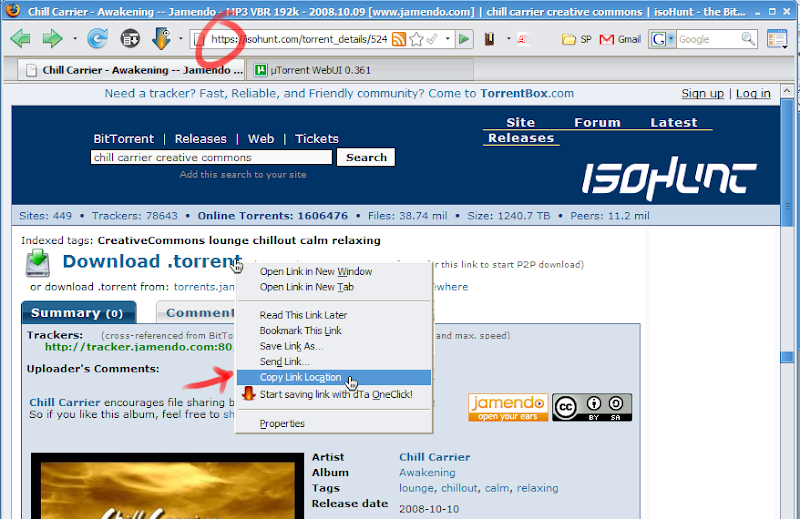
First, browse to your favorite HTTPS tracker. Make sure that "https://" is in the URL. Then copy the link to the torrent. You can save the file to your desktop if you want.
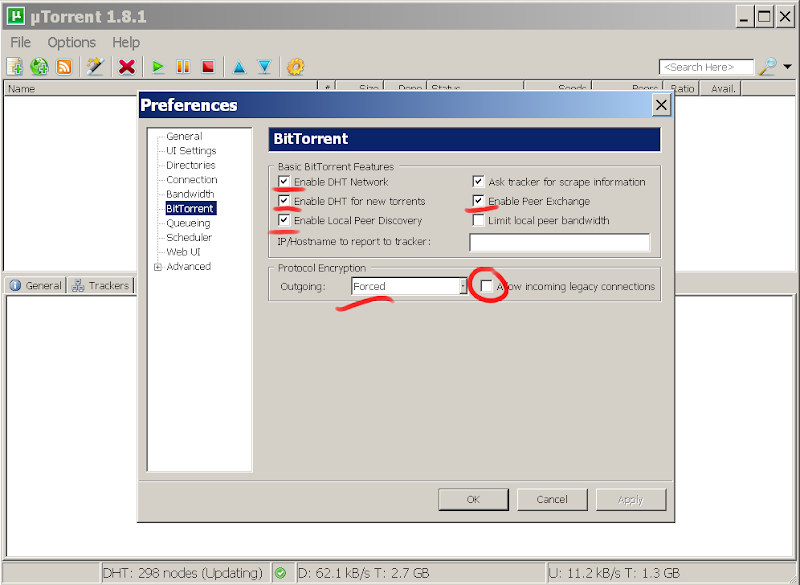
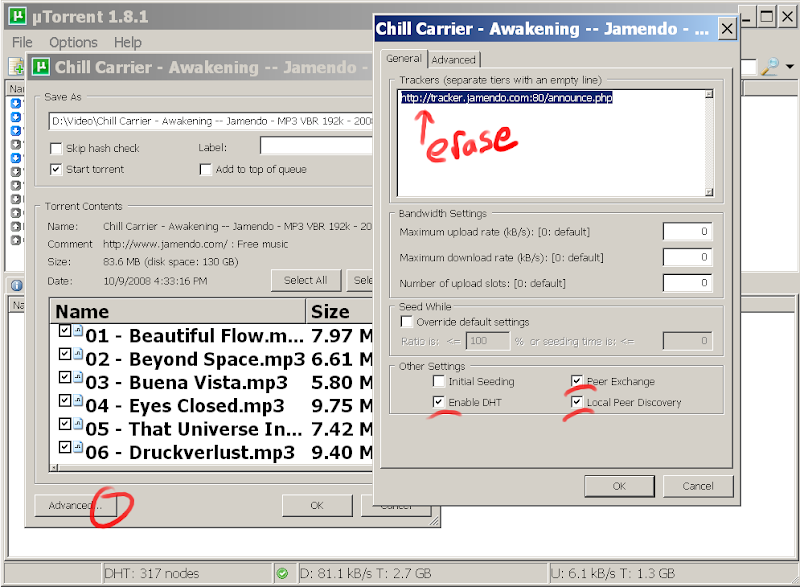
Second, check your uTorrent settings. On the Bittorrent panel, enable DHT Network, enable Local Peer Discovery, enable Peer Exchange, set Protocol Encryption to Forced and disable Allow incoming legacy connections.


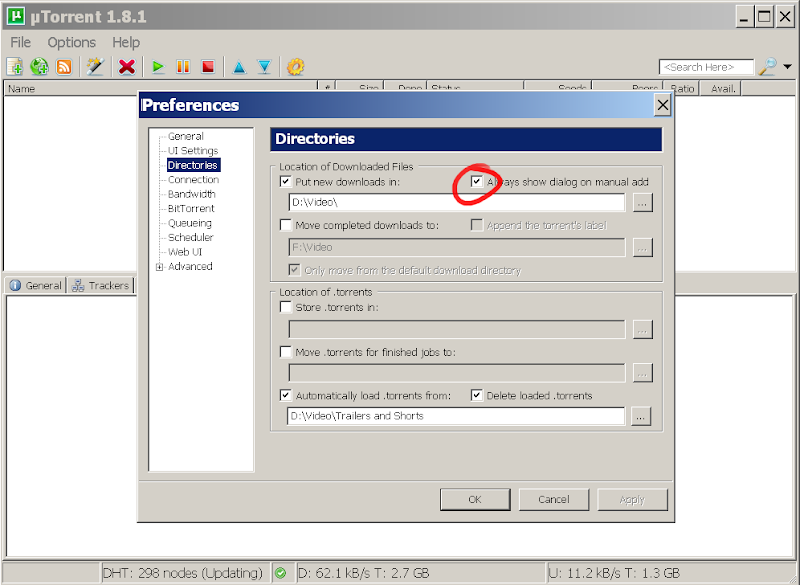
In the Directories panel, enable the setting to Always show dialog on manual add.


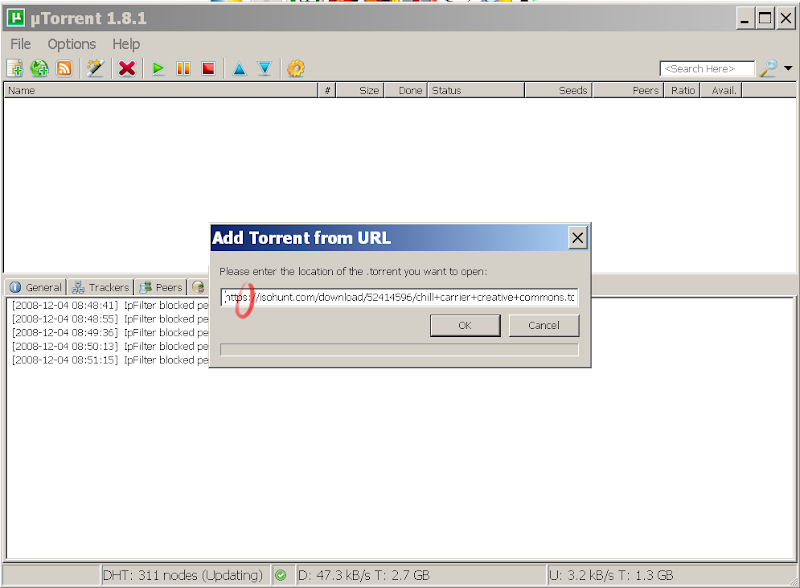
Click the Add torrent from URL button. Ensure the url of torrent contains "https://"


Now click Advanced and remove all the items in the Trackers box that do not contain "https". This usually will be all of them. Then check that DHT and Peer Exchange are enabled. If not, your torrent is private and cannot be downloaded under full encryption.


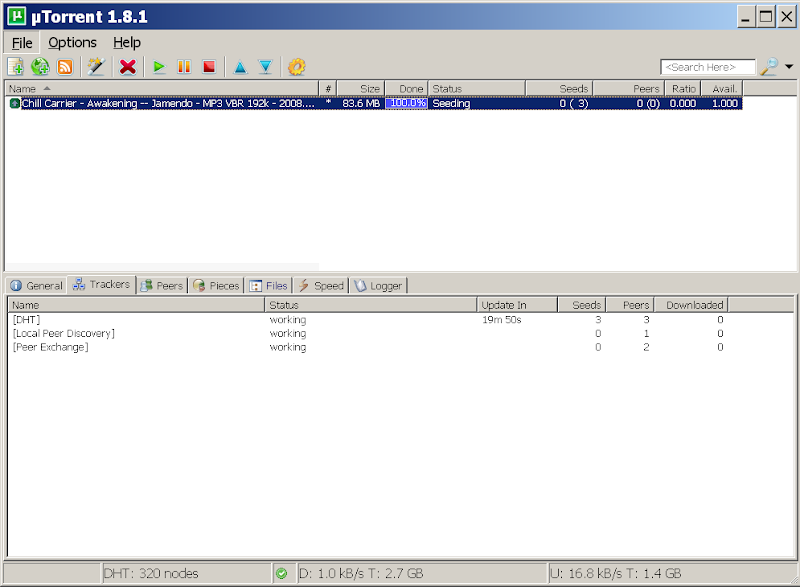
Once your torrent starts, check under the Trackers tab to see that it finds peers via DHT and Peer exchange after a few minutes. If not, your kinda out of luck.


Opinion

Personally, I believe this is the best way to download torrents until privacy is stated as secure by your ISP. Until ISP's decided to update their policies and accept the new age of content delivery, I refuse to hear their woes of bandwidth shaping and having their networks flooded with unidentified traffic. I personally don't support the idea of private torrents and forums for content that should be public. I do not wish you to accept my view, but offer you the option to consider it.


Saturday, May 3, 2008

Methods for backing Up Your Data Proficiently

Summary

The amount of data that you personally generate in a workday determines how much time you can afford to lose
This article covers methodology for personal backups, in the workplace and home. How to accomplish this goal on a Windows XP environment is covered in more detail.

Goals for Backing Up Your Personal Work Data

The main goal of a backup is to ensure your threshold for data loss that can keep you productive in an emergency. The method you use for backup should not compromise security that you have in place for the live data. The selection of data should be updated relative to the importance, expandability, and freshness of the data being backed up.

Decide: Your Time of Loss Threshold

The amount of data that you personally generate in a workday determines how much time you can afford to lose if you lose your work. If you generate lots of data that cannot be duplicated in less than a day's time, you may need to backup more than once a day. If you do not create data, or your data is moved to an alternate location that is not your own, your threshold may be as large as a week or two.

Decide: Detecting the Data Loss

Haveing backup plan is only half of what is required. You must know what to do in case of a data loss, and if your backup will be reliable. The first step in planing the recovery is ensureing you detect the data loss in a reasonable amount of time. If all the data you are backing up will be used on a day to day basis, detection will be easier. If you do not touch some data for weeks or months, you may not detect it until it is too late and your backup system has overwritten the file you need.

Determine: Frequency That Your Data Changes

Just because you deal with your data everyday does not mean it changes, and vis versa. You need to identify the number of files, the size of those files, and how much space each will take up. Do you create new files each time you add new data? Do your existing files get modified/appended/overwritten when you add new data?

Determine: A Location For Your Data

The reliability of your backup source, and security need to be chosen carefully. Does the device itself have the same physical security of your computer? What about file permissions on network and local level? Is the data encrypted? You should take into account hard drive failure, so your backups must be on a separate machine. You also might want to consider if you require an off site location.

Encryption

Any sensitive data needs to be encrypted, and the encryption you chose determines how it gets backed up. Using filesystem encryption does not work well for physical backups, because it is encrypted/decrypted on read/write for Windows. On Linux, rsync can backup disks without decrypting them, as well as files. Encrypted disks cannot be inquired for what files have changed, and keep track of them. When copying a large modified encrypted file, only a versioning file system like ZFS can detect the changes in the encrypted file and keep past versions - only in a best case scenario. Windows has no way of doing anything like this on the file system or in a file container. The best way to start getting a handle on backing up encrypted files is to make sure you are only encrypting what you need encrypted, and that the quickly changing files are separated from the static ones - a passwords file verses a informational document.

I personally use TrueCrypt, with a large encrypted file as a volume on Windows. The changes to the file cannot be detected, and the entire file must be overwritten or duplicated when backed up. In Linux, rsync could potentially detect the changes in my large file, but I would still lose versions.

Windows XP: Backup Locked Files

On Windows, the NTFS file system locks files as they are opened and closed, so only Windows' proprietary Shadow Copy system can access locked files. The Backup utility on Windows XP can take advantage of the Shadow Copy, but you cannot use Shadow Copy via the command line. Other third party utilities can as well, but not always reliably and at a monetary cost usually.

Windows XP: Backup Non-locked Files

Files that are not locked can be copied normally, so quick retrieval is available. A script that copys files once or twice a day, that only copies changed or new files is good for hard disk backup. A good utility for this is Windows Resource Kit: Robocopy. An example command that does not copy video files and is by default incremental: "C:\Program Files\Windows Resource Kits\Tools\robocopy.exe" "C:\Documents and Settings\myprofile\My Documents" "\\MyBackupServer\Backup Share\My Documents" /e /XF *.mkv /XF *.avi /XF *.mpg /XF *.mpeg /XF *.mp4
When you run robocopy as a scheduled task, it leaves error codes as results. You can look them up in the readme or search here.

Windows XP: Quirks of NTBackup

Using NTBackup can be problematic. Here are some notes you need to know to correctly configure a backup.
  1. Always disable "Wizard Mode". You will need to uncheck this option on first run, and rerun it.
  2. On the "Backup" tab, your file selections are saved into a ".bks" file, with only lists the files to include. You can save as many selection files as you want, anywhere you want. These files do not contain the backup "Options"
  3. You can modify your ".bks" files without updating the task in Task Scheduler.
  4. On the "Backup" tab, your file selections are forced recursive scan on any folder that you check individual files in. If you check the file "C:\log.txt", all directories and files in "C:\" will be scaned, but not backed up. This takes too long. You may want to restructure your files so they have their own folders.
  5. The choices you make in "Tools...Options...Backup Type" only apply to the current running instance, and any scheduled task you make. You can see the results in the command line options for the task.
  6. The choices you make in "Tools...Options...Exclude File Types" are global, and are in effect anytime the program is run. You should choose them carefully, example: C:\*.mp3
  7. [Updated] When completing the job or creating the scheduled task, be sure to choose "Append this backup to media" for incremental and "Replace the data on the media with this backup" for normal mode. If you forget to check, the "/a" activates the append mode on the command listed in the scheduled task properties. Remove it to activate replace mode.

Windows XP: NTFS Archive Flag

Do you remember the "Archive" property, found on old FAT filesystem files? That property still exsistes in NTFS, it is just not easily changed manually. The first time you run a backup that has the "mark files as backed up" options, all the affected files will be marked.

Backup Types: Incremental vs Normal

The incremental backup type will only scan the file system for files that do not have the "Archive" or "backed up" property set. It will skip all files found with it set, regardless of you are creating a new backup project or test. If you are running the same backup again, the backup type incremental will always add the entire file to the backup archive if it has been modified since the previous one was added to the backup archive file. With incremental backups, modified files will result in multiple copies of files inside the archive file.

A normal backup completely ignores the "Archive" or "backed up" property when copying the file, and then sets the property once complete.

You should do a Incremental backup on directories that have files that do not change frequently, but you need versions in case you desire to restore a particular version of the file. Example: "My Documents"

You should do a Normal backup on directories that have files that change constantly. If you need versions, you should determine the versioning plan you need - which could be a new version each day. Ideally, you could delete old versions to save space. Example: your "Firefox Profile", backed up each day, after one week overwriting that same day of week. "MondayFirefoxProfile.bkf"

Windows XP: Using the Task Scheduler

DWhen you click "Start Backup" in NTBackup, you can add items to the Task Scheduler. Here are some notes you need to know to correctly configure a backup task.
  1. Windows treats each task listed like a file, you can copy outside the scheduler. You can only duplicate tasks by dragging them outside the Scheduler window and renaming them. The files themselves are encoded, and cannot be edited outside the Task Scheduler applet.
  2. In the properties of a task, you can see the command that is run with all the switches.
  3. You can remove the saved password that NTBackup asked you for in the task properties under "Run only if logged on". Unchecking this feature would enable the task to run if you logged out. While it is checked, it still runs while the workstation is locked.
  4. Scheduling a separate backup for each day of the week is accomplished by using "Schedule...Weekly" and making a separate task for each day of the week.
  5. Scheduling twice a day is accomplished by using "Schedule...Daily" and accessing "Advanced". Then set it to repeat. Example: "Start: 12:01pm Repeat: 6 hours Duration 6 hours 5 min"
  6. If you want to get a task to run while you go to lunch, you can change "Settings...Idle Time" to "Only Start if the computer has been idle for at least" and only "If the computer has not been idle for that long, retry for up to" the length of your lunch hour or more. You should start the task at an average of your lunch time.
  7. Forcing the task using any of the settings may corrupt your backup file.
  8. Note the "Don't start the task if the computer is running on batteries." This will interrupt your "Repeat task" if you have any.